
Personalized OS UI Experience
Neli CreativePersonalization
4.631.00 Reviews
- Version
- 1.2.4
- Installs
- 100.00K
- Age Rating
- Everyone
Screenshots
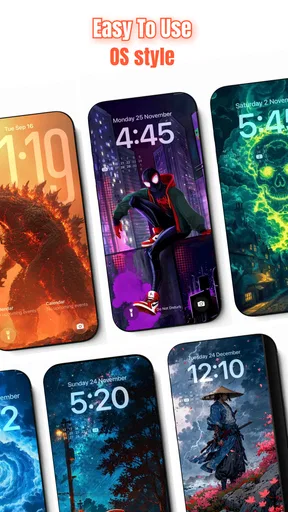
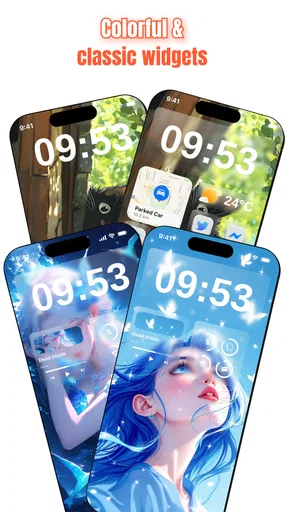
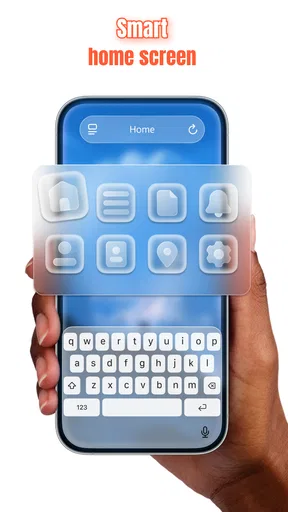
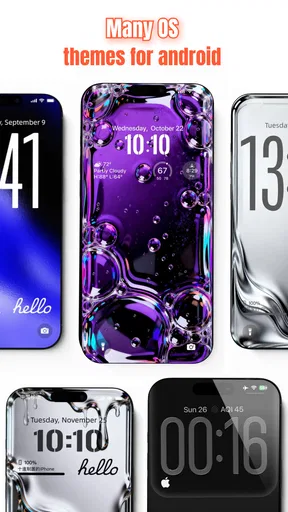
Our Review of Personalized OS UI Experience
 Analysis by Appyee
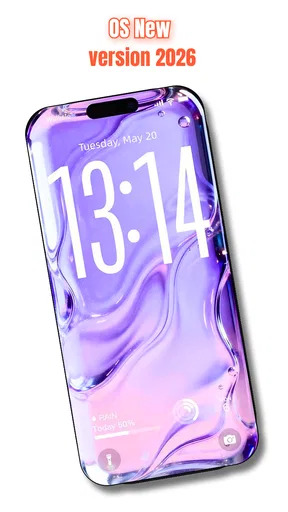
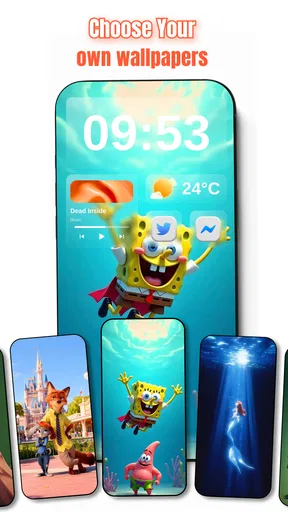
Personalized OS UI Experience is a free personalization app from Neli Creative that aims to make an Android phone feel closer to a newer operating-system style without replacing the entire device. I spent time looking at it as the kind of tool someone installs when the default interface feels too familiar and they want a more distinctive everyday look. Its main appeal is visual: deep-effect wallpapers and a custom quick-access menu give the phone a different mood without requiring a new device.
That promise is attractive, but this is not the sort of app I would judge only by its first screenshot. Personalization tools live or die by how smoothly they fit into daily habits. A wallpaper can look excellent in a preview and become distracting behind icons; a shortcut menu can be useful until it appears at the wrong moment; an interface inspired by a newer OS can feel fresh while still behaving like Android underneath. My experience is that this app is best approached as a visual layer with practical touches, not as a complete operating-system conversion.
What the app changes, and where the experience can feel different
The store summary focuses on an OS 26-inspired presentation, deep-effect wallpapers, and a custom quick-access menu. In practical terms, that makes the app interesting for people who want a more styled home screen and a quicker way to reach selected controls. It belongs firmly in the personalization category, so the central question is not whether it adds essential phone functions. The question is whether its visual treatment and access panel make your own phone more pleasant to use.
The strongest part of the concept is the combination of background and interaction. A wallpaper alone changes the atmosphere, but it does not change how you use the phone. A quick-access panel alone can be useful, but it may feel like another layer to remember. Used together, they create a more coherent theme. I found that the result works best when I kept the rest of the home screen restrained, with fewer competing widgets and icons. A busy launcher can make the depth effect look less deliberate.
One detail worth considering is that “OS-style” does not mean every Android element will suddenly behave like the system it resembles. The phone’s normal launcher, notification shade, settings screens, navigation gestures, and manufacturer-specific controls remain important parts of the experience. If you expect a complete system redesign, disappointment is likely. If you want a themed surface and a custom access point, the idea is much easier to appreciate.
The first places users are likely to get stuck
The initial setup is where I would tell a friend to slow down rather than tap through everything quickly. Personalization apps often involve choosing a visual style, applying it, and deciding how an added access menu should fit into existing habits. The important thing is to test one change at a time. Apply the wallpaper first, return to the home screen, and check whether icons, text, and widgets remain comfortable to read. Then try the quick-access feature separately.
This simple order makes troubleshooting much easier. If the wallpaper looks wrong, you know where to look. If the access menu feels awkward, you can adjust your expectations without blaming the visual theme. Changing several parts of the interface together may produce a dramatic first impression, but it also makes it harder to identify which element is causing friction.
I would also check whether the phone’s own wallpaper or launcher settings are taking priority. Some Android devices manage home-screen backgrounds through their system personalization area, while others use a manufacturer launcher with its own theme rules. If an applied design does not appear immediately, reopening the home screen and checking the device’s current wallpaper selection is a sensible first step. That is a general setup check, not a reason to assume the app has failed.
The custom menu deserves its own short trial. Use it when the phone is idle, then again while opening another app or moving between screens. The goal is to learn its activation gesture or placement before relying on it. If it is easy to summon accidentally, it may interfere with typing, scrolling, or games. If it is difficult to reach, it may not save time compared with the standard Android controls.
Setup checks that prevent avoidable frustration
Before settling on a design, I recommend checking the phone’s display settings and launcher arrangement. Large text, unusual icon spacing, or a crowded first page can alter how the wallpaper’s depth is perceived. A background that looks layered in an uncluttered layout may appear flat once covered by rows of shortcuts. Moving the most-used icons to a second page can be a surprisingly effective way to preserve the visual effect without sacrificing access.
It is also useful to test the design in both light and dark surroundings. A wallpaper that feels calm during the day can become too bright at night, while a darker design may make labels harder to distinguish in sunlight. This is one of the trade-offs I would not notice from a store preview alone. Personalization is not only about appearance at the moment of installation; it has to remain readable during the situations in which you actually use the phone.
For the quick-access menu, begin with a small, intentional routine. Instead of trying to make it the center of every interaction, use it for the actions you repeatedly reach for. If the panel becomes a second app drawer, it loses the advantage of being quick. I found the concept more convincing when treated as a compact shortcut surface rather than a replacement for the entire home screen.
Android version compatibility is another practical checkpoint. The app lists Android 9 as its minimum operating-system requirement, which makes it accessible to a broad range of devices. That does not mean every manufacturer will render the experience identically. Screen shape, launcher behavior, gesture navigation, and system styling can all affect the final result. I would judge the installation on the phone that will actually use it, not on how closely it resembles a demonstration image elsewhere.
Recovering the workflow when something feels wrong
When a customization suddenly looks misplaced, my first step is to return to the last change rather than reset everything. Reapply the wallpaper, revisit the home screen, and test the access menu independently. This keeps the process reversible and avoids turning a small visual issue into a full reconfiguration. If the phone’s normal home screen still works, that is useful evidence that the problem may be limited to the selected customization rather than the device itself.
A practical recovery routine is to close the app, return to the standard home screen, and reopen the personalization controls. Then make one adjustment and check the result. If the menu appears while using another app, try the same gesture on the home screen and in a simple screen such as the app list. Differences between those situations can reveal whether the issue is placement, timing, or an interaction with another interface element.
I would avoid repeatedly changing themes in rapid succession. Visual layers sometimes need a moment to refresh, and quick switching makes it difficult to know which configuration is active. More importantly, it encourages chasing a perfect preview instead of finding a setup that feels natural. Pick one wallpaper, use it through a normal routine, and only then decide whether the design deserves further adjustment.
If the wallpaper does not seem to apply, check the phone’s current home-screen setting and confirm that the device has returned to the launcher after the change. If the quick menu does not feel responsive, test it without another floating control or overlay active. Many phones include their own edge panels, accessibility buttons, gaming tools, or floating shortcuts. Two overlapping access systems can make either one seem unreliable even when both are working as designed.
There is also a useful distinction between a visual complaint and a functional one. If the wallpaper is cropped differently than expected, that may be a screen-ratio or launcher presentation issue. If the phone begins behaving unusually outside the customized screen, the sensible response is to restore the normal setup and inspect other recent changes rather than assuming the personalization app is responsible. Keeping that distinction prevents unnecessary resets.
When the app may not be the cause
Personalized interfaces are especially sensitive to the phone around them. A manufacturer launcher may place icons or widgets differently from the layout shown in a preview. Gesture navigation can change where a swipe begins. Display scaling can affect how much of a background remains visible. None of these differences automatically means the app is defective; they simply show why the same design can feel polished on one phone and awkward on another.
Performance complaints also need careful interpretation. If the whole device feels slow, check whether other apps, a nearly full storage area, or a recent system change are involved. If only the customized screen feels uncomfortable, compare it with the default home screen. This quick comparison helps separate a general phone issue from a design that is too busy for the device’s current arrangement.
Notifications and system controls should be judged separately from the app’s visual layer. Android’s notification shade and settings remain controlled by the operating system, so a themed home screen should not be expected to reproduce every system panel. That matters for users who want a unified interface across the entire phone. They may prefer a launcher or a full theme system designed specifically for their device, even if it offers less of the particular deep-wallpaper style found here.
Privacy-conscious users may also want to think about the kind of customization they are comfortable adding. I would keep the installation focused on the features I actually intend to use and avoid treating a visual app as a reason to grant unrelated access elsewhere. The app is rated Everyone, but an age rating is not a substitute for reviewing the choices presented during setup. A careful installation is sensible for any app that changes how the phone is used.
Who will enjoy it, and who should choose another route
I think this app suits someone who is bored with a stock home screen, likes the look of layered wallpapers, and wants a quick-access area that feels more intentional than a random collection of shortcuts. It is also a reasonable option for an older Android phone that cannot adopt the newest system design but can still benefit from a refreshed visual identity. Because it is free to install, trying the basic experience is less of a commitment than buying a complete launcher or theme package first.
A realistic everyday scenario would be a commuter who keeps the first home page simple: a clock, a few essential apps, and a deep-effect background. The custom menu can then serve as a secondary route to frequently used actions without filling the screen with icons. That arrangement makes sense when the user values a clean appearance but still wants faster access than opening the full app list.
On the other hand, I would not recommend it as the first choice for someone who wants extensive automation, detailed icon-pack control, or a complete replacement for the phone’s launcher. A dedicated launcher is usually better for deep grid adjustments, gesture customization, folders, and home-screen management. Someone who wants every system panel to match may be happier with the manufacturer’s own theme tools or a device-wide theme solution.
The purchase model is another consideration. The app is free, with optional in-app items ranging from a few dollars to higher-priced options. I would explore the free experience first and only pay after confirming that the visual style works with the phone’s screen, launcher, and daily routine. The value depends less on how many designs are available and more on whether one of them remains comfortable after the novelty fades.
How it compares with ordinary personalization choices
The simplest alternative is changing a normal wallpaper through Android’s built-in settings. That route is more predictable and usually creates less interaction friction, but it does not offer the same sense of a coordinated visual layer and custom access point. If all you want is a new background, the system option is probably enough. If you want the phone to feel deliberately styled, this app has a clearer reason to exist.
A standard launcher offers the opposite balance. It can provide more control over layout and behavior, but it may take longer to configure and can introduce a larger change to established habits. Personalized OS UI Experience feels more focused: it is aimed at the appearance and quick-access experience rather than asking you to rebuild the entire home screen from scratch. That focus is a strength for casual customization and a limitation for power users.
Device-specific theme stores can integrate more deeply with a manufacturer’s interface, which may produce a more consistent result across system screens. Their weakness is that they are often tied to one brand or device family. This app is more appealing when you want an OS-inspired look without committing to a particular phone ecosystem, while the manufacturer’s own tools are preferable when system-wide consistency matters most.
My practical verdict after using the concept daily
Neli Creative has made a focused personalization app for people who want their Android phone to look less ordinary without replacing its identity completely. The deep-effect wallpaper idea gives the visual side a clear character, and the custom quick-access menu adds a functional reason to keep using the setup. I especially like the possibility of pairing a calm, uncluttered home screen with a small set of frequently used actions.
The experience is not friction-free. The final appearance depends heavily on the launcher, screen settings, navigation style, and existing overlays on the phone. The access menu may also take a little practice before it becomes genuinely quicker than familiar Android controls. Those are not deal-breakers, but they mean I would test the app gradually rather than applying every customization at once.
Its current version is 1.2.4, and the app has built a solid audience with a 4.6 average from around 1.4 thousand ratings and more than 100 thousand installs. Those figures suggest that the concept has found interested users, but my recommendation still depends on your goal. I would try it if you want a visual refresh and are willing to spend a few minutes arranging the result around your phone’s existing launcher.
For me, the deciding point is simple: this is a good visual upgrade, not a complete operating-system replacement. It is free to start, suitable for Everyone, and available on devices running Android 9 or later, with optional purchases for users who want to go further. If you value a distinctive wallpaper and a compact shortcut experience, it is worth exploring. If you need deep launcher control or a perfectly unified system theme, I would choose a more specialized alternative instead.
Verdict
Strengths of Personalized OS UI Experience
- Clean interface with intuitive navigation and easy-to-reach settings.
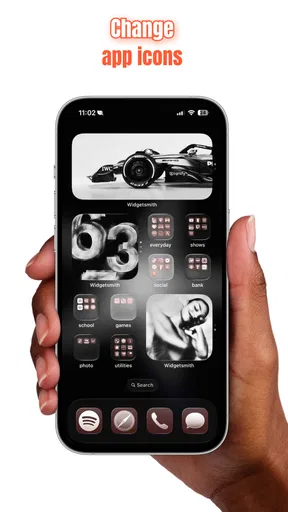
- Useful customization options for colors, icons, widgets, and layouts.
- Smooth animations make everyday interactions feel polished.
- Personalized shortcuts can improve access to frequently used features.
- Consistent design across system apps creates a cohesive experience.
Limitations of Personalized OS UI Experience
- Some customization features may vary by device or operating system version.
- Extra visual effects can consume more battery on older phones.
- Advanced settings may feel overwhelming for first-time users.
- Certain themes or icon packs may require additional purchases.
- Personalized layouts can become cluttered without regular organization.
Other Releases by Neli Creative
View All
Origami World: Learn & Play
Art & Design4.2

Live 3D Charging Animation
Personalization4.1

Cute Keyboard: Sound & Emoji
Personalization4.3

Mechanical Keyboard: RGB Theme
Personalization4.6
Similar Picks in This Category
View All
Microsoft SwiftKey AI Keyboard
SwiftKey4.3

Wallpapers
Google LLC4.1

Zedge™ Wallpapers & Ringtones
Zedge4.7

Yandex Browser with Alice AI
Direct Cursus Computer Systems Trading LLC4.3

Ringtone Maker:create ringtone
Big Bang Inc.4.7

Fonts Keyboard
Fonts Keyboard3.9
Frequently Asked Questions
What is Personalized OS UI Experience?
Personalized OS UI Experience is a customization-focused application designed to help users adjust the appearance and behavior of their device interface. Depending on the supported device and operating-system version, it may provide options for themes, wallpapers, icons, layouts, colors, widgets, and other visual elements. Its exact features can vary between Android and iOS, so checking compatibility before downloading is recommended.
Is Personalized OS UI Experience compatible with my device?
Compatibility depends on your phone model, operating-system version, region, and the permissions required by the application. Before installing, review the official store listing for supported Android or iOS versions and device requirements. Some personalization tools may offer broader control on Android, while iOS users can face system restrictions that limit changes to certain widgets, wallpapers, shortcuts, or interface elements.
Does the app require special permissions or access to personal data?
Personalized OS UI Experience may request permissions related to notifications, storage or photos, widgets, accessibility features, or displaying content over other applications, depending on the customization tools you use. These permissions should be reviewed carefully during setup. Only grant access that is necessary for the feature you want, and check the privacy policy to understand whether usage data or personal information is collected.
Will using Personalized OS UI Experience affect my phone’s performance or battery life?
Basic themes, wallpapers, icons, and static widgets generally have a limited effect on performance. However, animated backgrounds, frequently updating widgets, notification services, or accessibility-based features can use additional battery, memory, and processing power. If your device becomes slower or battery usage increases after customization, disable unnecessary effects, reduce background activity, or return to a simpler interface configuration.
Is Personalized OS UI Experience free to download and use?
The application may be available as a free download, but some features can require in-app purchases, a subscription, or premium content. These may include exclusive themes, advanced customization tools, ad removal, or additional design packs. Review the store page carefully before installing, especially the pricing and renewal terms, and confirm whether the free version provides enough options for your preferred level of personalization.
